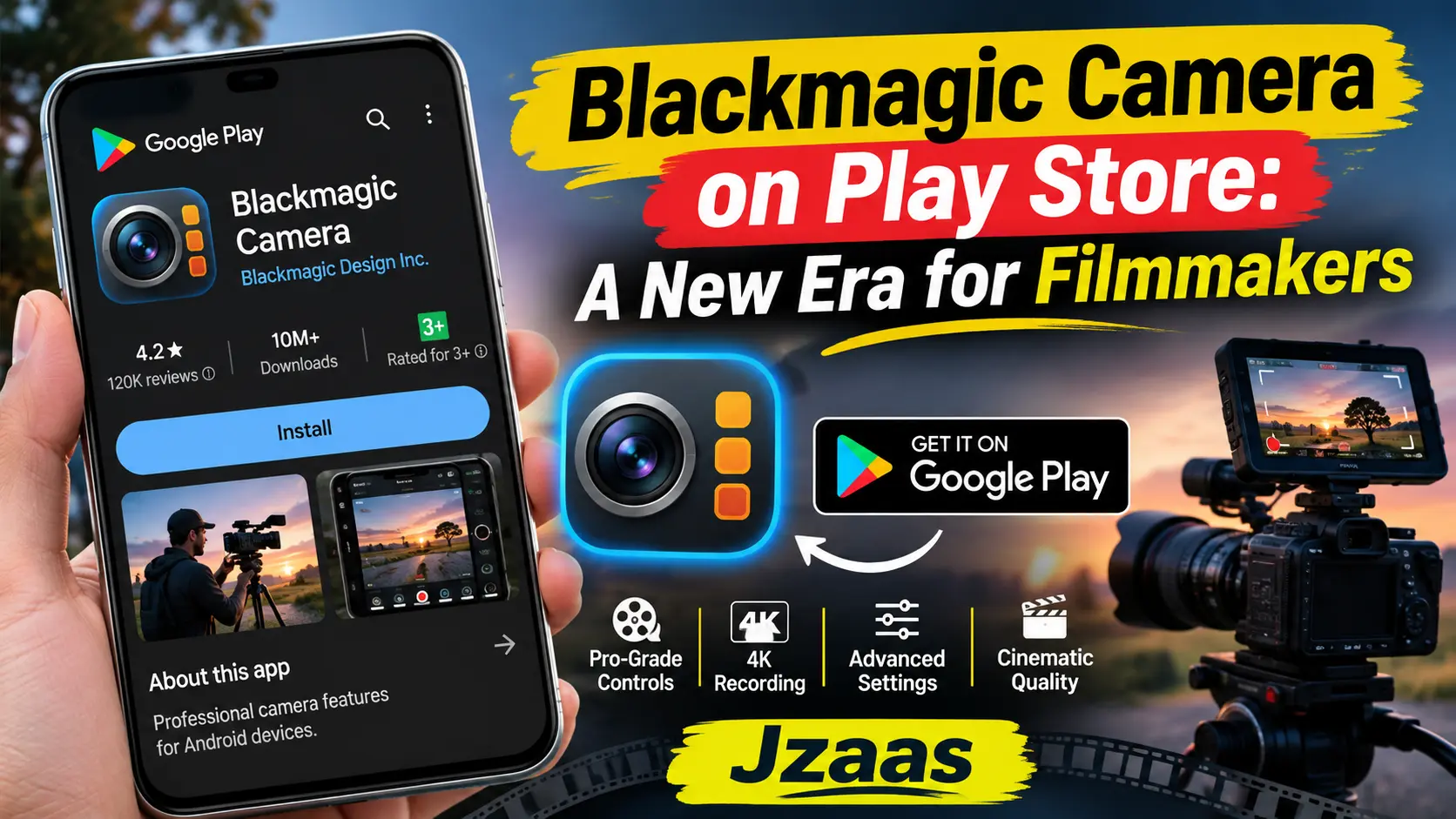
Blackmagic Camera on Play Store: A New Era for Filmmakers

Making professional looking videos on a smartphone is not always easy. Many built in camera apps offer limited control over lighting, focus, and video settings. This can make it difficult for content creators to get the results they want. Blackmagic Camera on Play Store gives Android users more control over video recording without needing an expensive professional camera.
The app brings useful filmmaking tools to supported Android phones and tablets. Users can adjust camera settings, check video quality, and share recordings with editors through Blackmagic Cloud. Whether you create YouTube videos, short films, or social media content, this app can help you improve your recording process. This guide explains its features, download steps, supported devices, and requirements.
Blackmagic Camera (Quick Information)
| Information | Details |
|---|---|
| App Name | Blackmagic Camera |
| Category | Photography and Video Recording |
| Developer | Blackmagic Design Inc. |
| Platform | Android, with a separate iOS version |
| Availability | Google Play Store |
| Main Features | Manual controls, video monitoring, cloud sharing, remote camera control |
| Pricing | Free download and recording |
| Internet Requirements | Needed for downloading and cloud features; not required for basic local recording |
| Android Compatibility | Android 13 or later on supported devices |
| Download Source | Official Google Play Store |
What Is the Blackmagic Camera App?
Blackmagic Camera is a free video recording app developed by Blackmagic Design. It brings professional camera controls to supported smartphones and tablets. Instead of relying only on automatic settings, users can adjust different recording options to match their needs.
The app is mainly designed for video creators who want more control over their recordings. It includes manual focus, exposure tools, audio monitoring, and video quality settings. It also works with Blackmagic Cloud, making it easier to share footage with editors using DaVinci Resolve.
Unlike a traditional video editor, Blackmagic Camera focuses on recording footage. Users can capture their videos in the app and edit them later using separate editing software.
Key Features of Blackmagic Camera
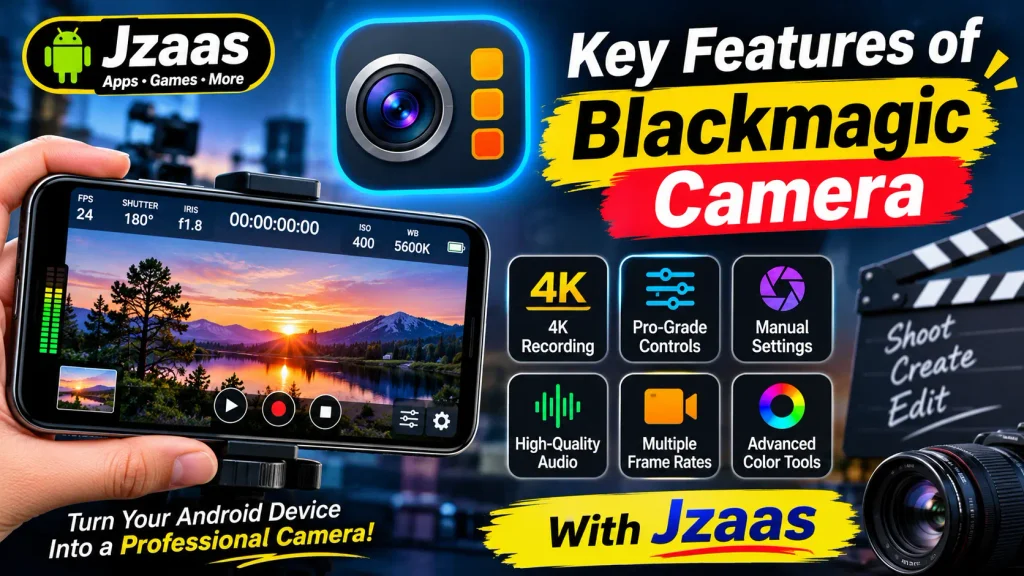
Blackmagic Camera offers several tools that can make smartphone video recording more flexible. Here are some of its main features and how they help users create better videos.
1. Professional Manual Camera Controls
The app allows users to adjust ISO, shutter speed, white balance, and focus. These controls help manage how bright a video looks and how the camera responds to different lighting conditions. Users can also lock certain settings to keep their shots consistent.
2. High Quality Video Recording
Blackmagic Camera supports different video resolutions, including 720p, 1080p, 4K, and up to 8K on compatible devices. It also supports recording formats such as H.264 and H.265. Available resolutions, formats, and frame rates depend on the phone being used.
3. Advanced Video Monitoring Tools
The app includes tools such as a histogram, focus peaking, frame guides, and audio meters. These help users check lighting, focus, framing, and sound while recording. For example, focus peaking can make it easier to see which parts of a scene are in focus.
4. Color Control and LUT Support
Blackmagic Camera supports LUTs, which are tools used to change how colors appear in a video. Users can import compatible LUTs and preview different color styles while recording. This can help filmmakers plan the visual look of their footage before editing.
5. Blackmagic Cloud Integration
The app connects with Blackmagic Cloud, allowing users to upload footage and share it with other people. This is useful for video teams working from different locations. Supported cloud workflows can also connect recorded clips with DaVinci Resolve projects.
6. Audio Recording and Monitoring
Clear sound is an important part of video production. Blackmagic Camera provides audio level meters and supports built-in or compatible external microphones. Users can check sound levels while recording to help avoid audio that is too quiet or too loud.
7. Remote Camera Control
Blackmagic Camera supports remote control features for compatible devices. Users can monitor and control multiple cameras over a supported network. This can be helpful when recording interviews, events, or videos that need more than one camera angle.
How to Download Blackmagic Camera from Play Store
Blackmagic Camera is available as a free download from the Google Play Store. Before installing it, check that your Android device supports the app.
Step 1: Open Google Play Store
Open the Google Play Store on your Android phone or tablet. Make sure your device has an internet connection.
Step 2: Search for Blackmagic Camera
Type “Blackmagic Camera” into the search bar. Find the official app published by Blackmagic Design Inc. and open its listing.
Step 3: Check Device Compatibility
Look for the Install button on the app page. If Google Play shows that your device is not compatible, you may not be able to install or use the app properly.
Step 4: Download and Open the App
Tap Install and allow the download to finish. Once the installation is complete, open the app and review the permissions needed for recording.
Also download from playstore
How to Use Blackmagic Camera?
Blackmagic Camera provides many recording settings, but beginners can start with a few simple controls. Follow these steps to record your first video.
Step 1: Open the App
Launch Blackmagic Camera on your supported Android device. Allow the camera and microphone permissions needed to capture video and sound.
Step 2: Choose Your Video Settings
Open the recording settings and select an available resolution and frame rate. Beginners can start with 1080p at 30 frames per second if their device supports it.
Step 3: Adjust the Camera Controls
Use the on-screen controls to adjust focus, ISO, shutter speed, and white balance. If you are new to manual recording, start with automatic settings and change one option at a time.
Step 4: Check Your Video Frame
Point the camera at your subject and check the lighting. Use focus peaking, frame guides, or the histogram if needed. Make sure your subject is clearly visible before recording.
Step 5: Start Recording
Tap the Record button to capture your video. Keep your phone steady and watch the recording indicators to confirm that the video is being saved.
Step 6: Review and Save Your Video
Stop recording when you finish. Open the Media section to review the clip and check its quality. Depending on your settings and device, you can save footage locally or share it through Blackmagic Cloud.
After recording your videos, explore our YouTube Create App guide to learn about another tool for mobile video creation.
Which Android Phones Support Blackmagic Camera?
Blackmagic Camera works on selected Android phones and tablets rather than every Android device. Official compatibility information includes several Samsung Galaxy, Google Pixel, OnePlus, Xiaomi, Sony Xperia, Oppo, and Vivo models.
Some supported examples include Samsung Galaxy S21 through S25 series devices, Google Pixel 6 through 9 series devices excluding Pixel Fold models, OnePlus 11 and 12, Xiaomi 13 and 14, and selected Sony Xperia phones. Supported tablets include Samsung Galaxy Tab S9 and Xiaomi Pad 6.
Compatibility can change with app updates. Also, a phone that supports the app may not support every recording feature. The easiest way to check is to open the official Google Play listing on your own device.
Blackmagic Camera vs. Default Android Camera
Most Android phones already include a camera app that is suitable for everyday recording. However, Blackmagic Camera provides additional controls for users who want to manage their videos more closely.
| Feature | Blackmagic Camera | Default Camera App |
|---|---|---|
| Manual Video Controls | Detailed controls on supported devices | Varies by phone |
| Video Quality Settings | Multiple supported formats and resolutions | Usually available |
| Focus Monitoring | Professional monitoring tools | Depends on device |
| LUT Support | Supported | Not always available |
| Cloud Collaboration | Blackmagic Cloud integration | Depends on manufacturer |
| Ease of Use | May require some learning | Usually easier for beginners |
Blackmagic Camera can be a useful option for users who enjoy filmmaking or want to learn manual video recording. However, a phone’s default camera may be more convenient for quick everyday videos.
If you also want to explore other smartphone camera tools, read our guide to GCam Go Camera and LMC 8.4 Camera on Play Store.
Is Blackmagic Camera Free to Use?
Yes, Blackmagic Camera is free to download and use on supported Android devices. Users can access its available recording controls without purchasing the app. It provides a useful starting point for people who want to learn mobile filmmaking.
Blackmagic Cloud also offers a free account with limited storage. However, additional cloud storage and some related cloud services may require payment. Users who only need local video recording do not need to purchase extra cloud storage.
Is Blackmagic Camera Safe for Android?
Blackmagic Camera is an official app published by Blackmagic Design Inc. and available through Google Play. Downloading it from the official listing is a safer choice than using unknown websites or modified APK files. Users should also keep the app updated and review the permissions it requests.
According to the Google Play data safety section, the app may collect personal information, photos, videos, and files or documents. The listing also states that data is encrypted in transit and that no data is shared with third parties. Users should review the latest privacy details before enabling cloud features or uploading personal videos.
Blackmagic Camera Requirements
Before using Blackmagic Camera, make sure your device meets the basic requirements. The app needs a supported Android model, and some recording options depend on the phone’s camera hardware.
| Requirement | Details |
|---|---|
| Operating System | Android 13 or later |
| Supported Devices | Selected Android phones and tablets |
| Camera Access | Required for video recording |
| Microphone Access | Required when recording audio |
| Storage | Sufficient free space for recorded videos |
| Internet Connection | Required for downloading, updates, and cloud uploads |
| Google Play Access | Needed for installation through Play Store |
| High-Resolution Recording | Depends on device capabilities |
Recording high resolution videos can use considerable storage space and battery power. For longer recording sessions, users should check their available storage, battery level, and device temperature.
If you want to explore another professional video recording app, check out our mcpro24fps APK guide to learn about its manual camera controls, frame rate settings, and recording features.
Common Blackmagic Camera Problems and Solutions
Like other recording apps, Blackmagic Camera may sometimes have compatibility or performance issues. Many problems can be checked by reviewing the device settings and available recording options.
Blackmagic Camera Is Not Compatible
If the Play Store says your device is not compatible, check your Android version and phone model. Android 13 or later is required, but the operating system alone does not guarantee support. Avoid installing unofficial modified versions to bypass compatibility checks.
Some Camera Features Are Missing
Not every Android phone supports every available feature. Recording resolution, lens selection, stabilization, and frame rates may vary. Check the recording settings and try another supported mode if an option is unavailable.
Video Recording Stops Unexpectedly
Recording may stop because of limited storage, device heating, or performance issues. Free up some storage, lower the recording resolution, and close unnecessary apps. You can also check whether a newer app update is available.
(FAQs)
1. Is Blackmagic Camera available on Google Play Store?
Yes, Blackmagic Camera is available on Google Play Store for supported Android phones and tablets. It is published by Blackmagic Design Inc. and can be downloaded for free.
2. Can I use Blackmagic Camera on any Android phone?
No, Blackmagic Camera does not support every Android phone. It requires Android 13 or later and a compatible device. You can check support through the official Google Play listing.
3. Does Blackmagic Camera support 4K video recording?
Yes, Blackmagic Camera supports 4K recording on compatible devices. The available video quality and frame rates depend on your phone’s hardware and recording settings.
4. Can I use Blackmagic Camera without the internet?
Yes, basic local video recording can work without an active internet connection after installation. However, downloading the app, installing updates, and uploading videos through Blackmagic Cloud require internet access.
5. Is Blackmagic Camera good for beginners?
Yes, beginners can use Blackmagic Camera to learn how professional video settings work. However, its many controls may feel confusing at first. Starting with automatic settings and gradually learning manual controls can make the process easier.
Conclusion
Blackmagic Camera gives supported Android users more control over how they record videos. With manual settings, monitoring tools, flexible recording options, and cloud integration, it offers useful features for content creators, students, and people interested in mobile filmmaking.
The app is free to download, making it worth exploring if your phone is compatible. However, the quality of your recordings still depends on your device, lighting, and recording skills. Start with simple settings, practice using the available tools, and choose the options that work best for your videos.
For more Android app guides, APK information, and the latest technology updates, keep visiting Jzaas for simple and useful content.